Restarting/Power Cycling Your Rigado Gateway
Last updated: October 1, 2026
Locate your gateway: The gateway may be white or black, depending on its network connection type (Ethernet, WiFi, or Cellular). Typically, white gateways are connected via Ethernet, while black gateways are connected via WiFi or Cellular. However, this may vary.
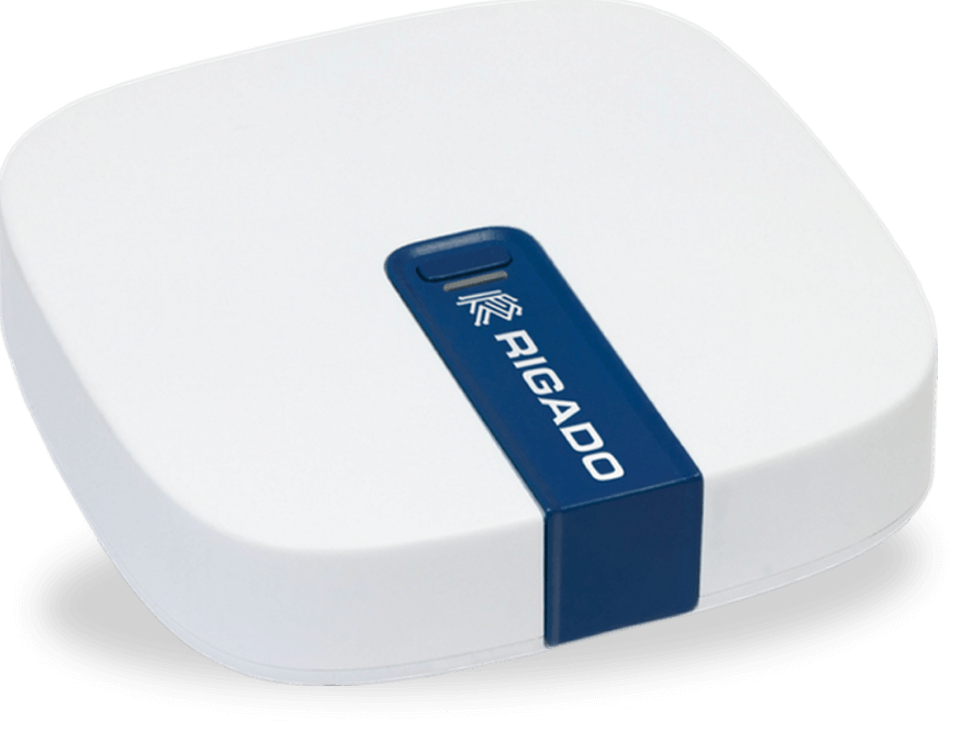

2. Identify the power source: It could be an Ethernet cable used for data and Power over Ethernet (PoE), or a standard power plug.
Warning: If using Power over Ethernet (PoE), do not connect an additional power supply. Only use one power source at a time to avoid potential damage to the gateway.
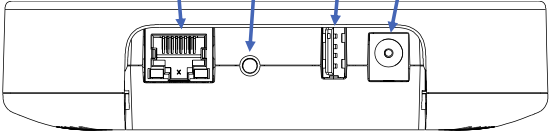
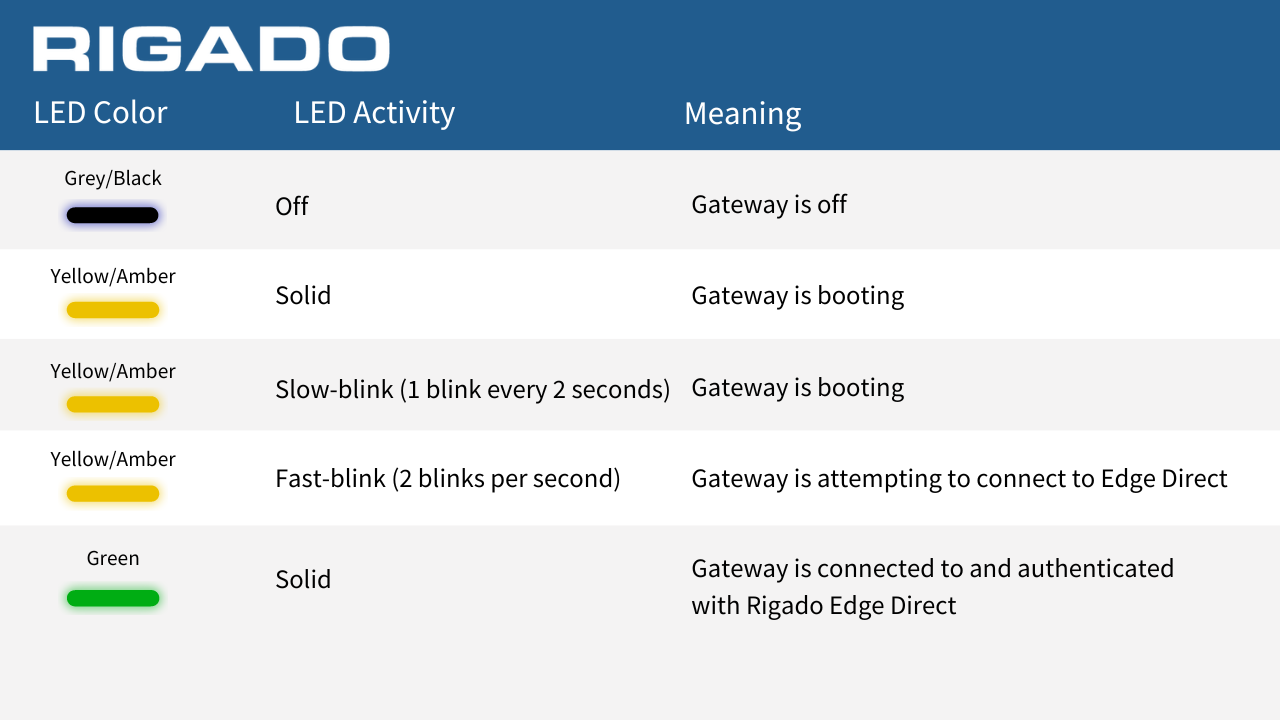
3. Disconnect the power source: Unplug the Ethernet cable or the standard power plug from the gateway. 4. Wait for a few seconds: Allow the gateway to completely power down by waiting 10-15 seconds before reconnecting the power source. 5. Reconnect the power source. 6. Observe the startup process: As the gateway powers on, there should be a solid yellow LED indicating that the gateway is booting. 7. Once the gateway has fully booted, a solid green LED will indicate that the gateway has a healthy connection.
Boot Sequence LED Patterns
Multiple Offline Gateways
If multiple gateways at your site are offline, each gateway must be rebooted individually. Rebooting one gateway will not automatically restore connectivity to other offline gateways.