Replacing Batteries in Wireless Sensors
Last updated: August 10, 2026
Recommended Battery:
VergeSense highly recommends the use of Energizer L91 AA Ultimate Lithium batteries for optimal performance when replacing batteries. Details regarding the specifications of Energizer L91 AA Ultimate Lithium batteries can be accessed here.
L302 Model
-
Remove the Backplate from the Sensor

To remove the backplate, apply light pressure and slide it toward the reset button, away from the sensor ID sticker.

Please note that the backplate is reversible and may be installed with the sticker upside down. Regardless of orientation, it is removed by sliding it toward the reset button. 2. ### Remove the Batteries
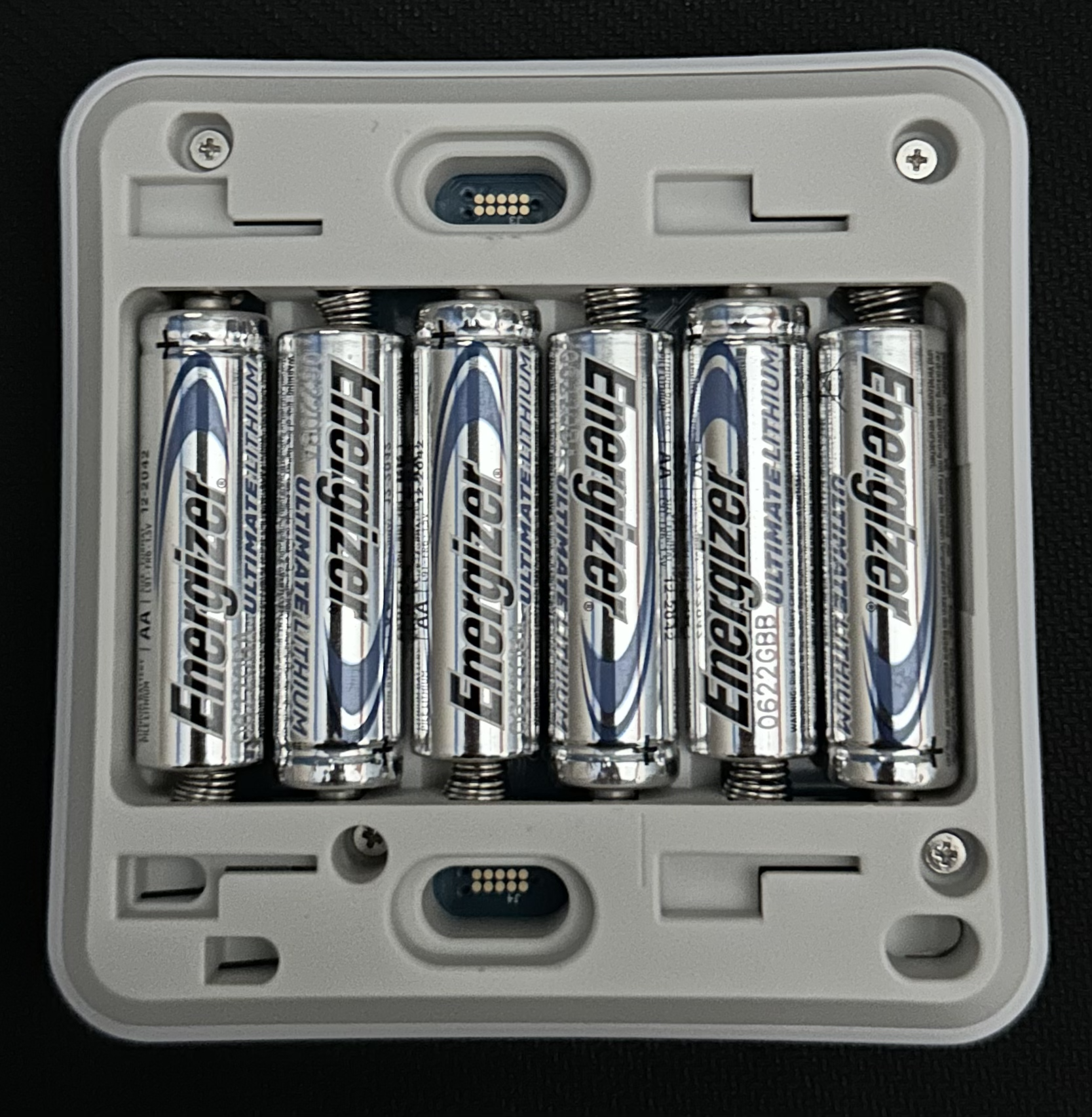
An image of the sensor with batteries removed is shown below:
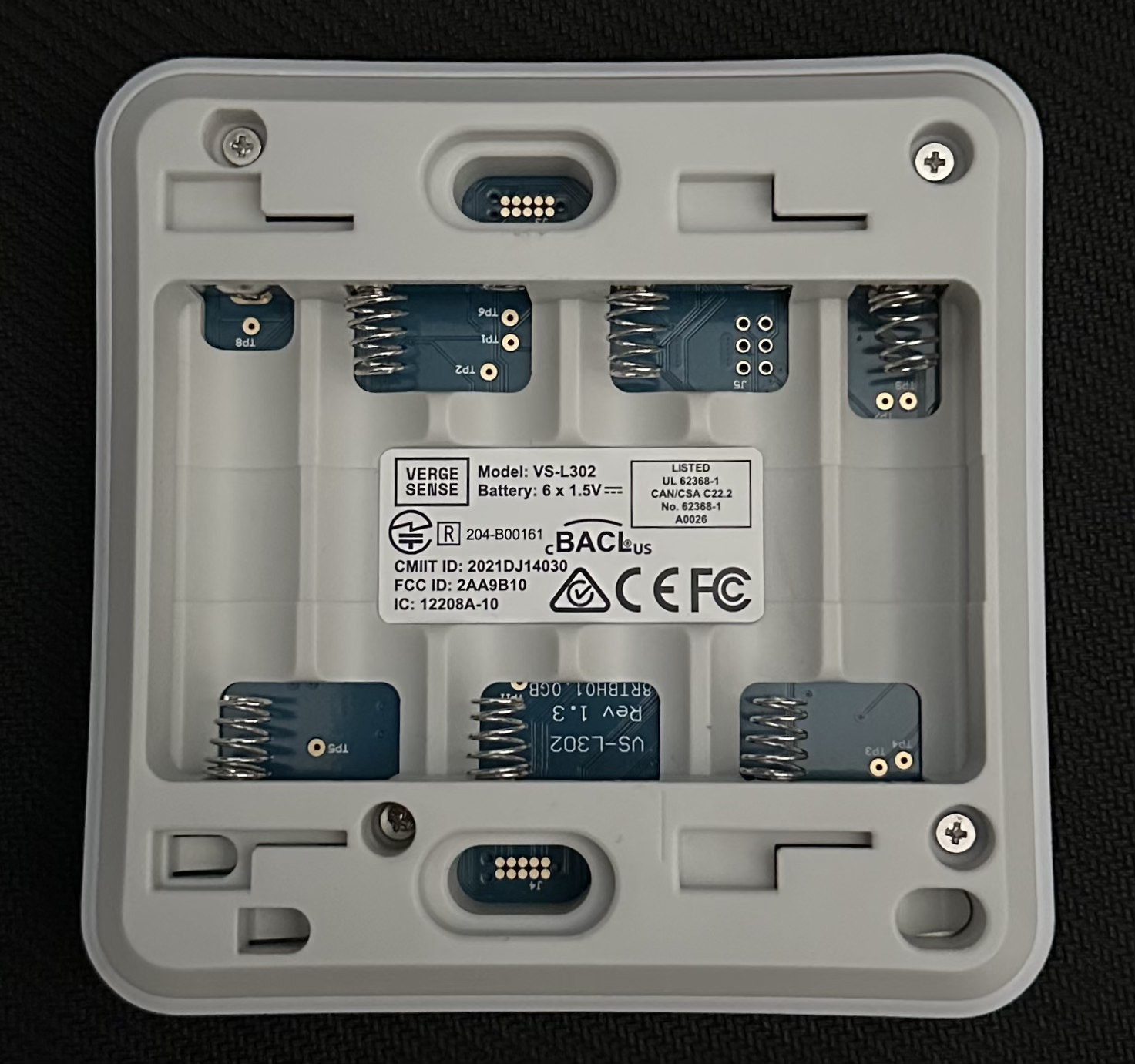
Quickly inspect the battery terminals for any signs of corrosion or leakage. If you notice signs of either, please contact VergeSense Support (support@vergesense.com) with the sensor ID(s) and photos of the damage. 3. ### Install New Batteries
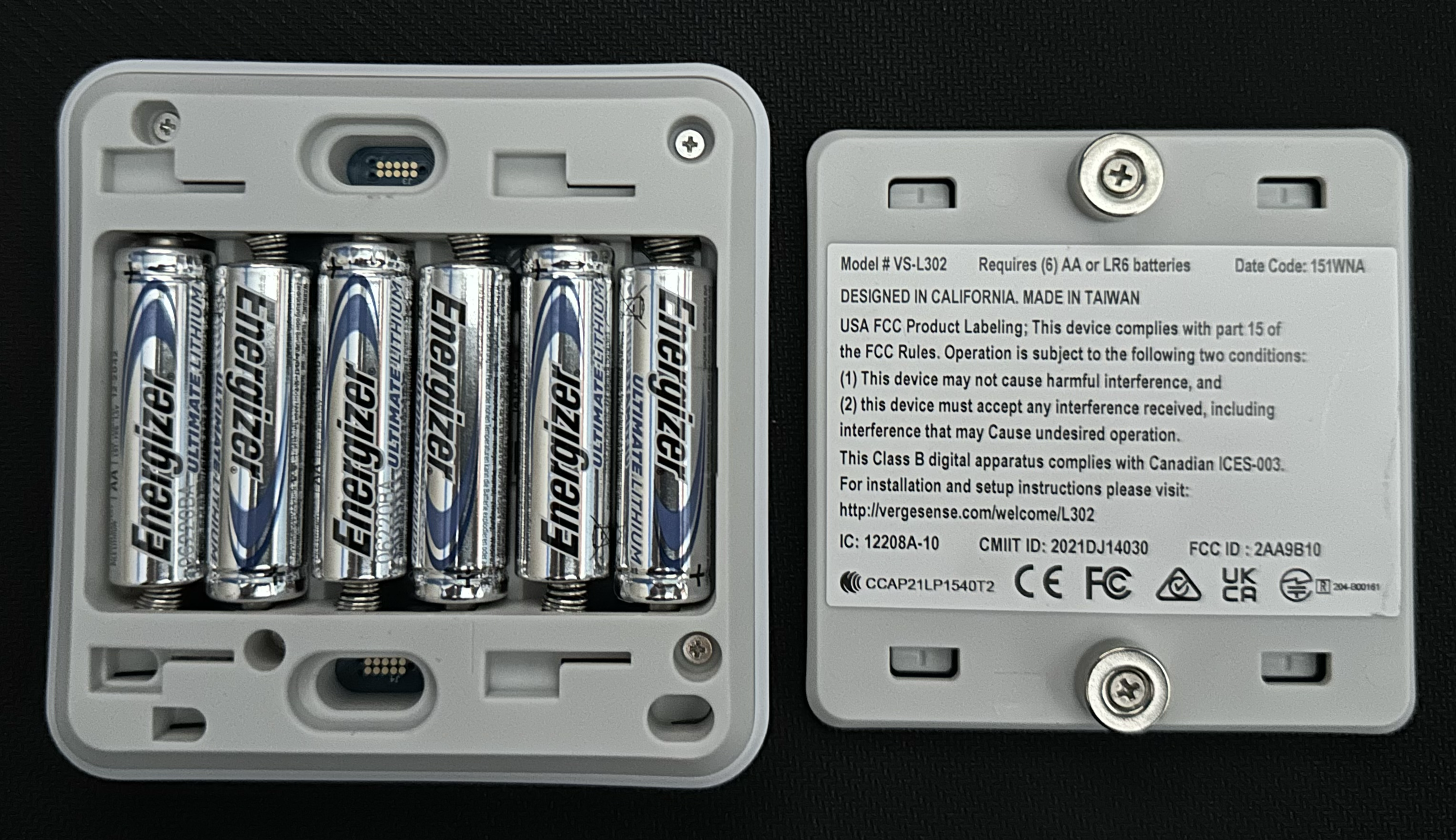
When installing each battery, first insert the negative (flat) side of the battery into the spring contact.
Once battery 1 is installed, follow the same procedure for the rest of the batteries in numerical sequence (2, 3, 4, 5, 6).
Upon installing the last battery, the sensor LED light will come on. When first booting up, the sensor will cycle - Red, Green, Blue (0.5s each color) 3 times (see video below), followed by the LED activity in the table below.

| LED Color | LED Activity | Meaning |
| Green | Flashing (0.5s) once every 15s for 5min | Confirmed connection |
| Red | Flashing (0.5s) once every 15s for 5min | No connection |
| Blue | Flashing | Hardware failure |
If the LED indicator does not light up after correctly inserting new batteries, please contact VergeSense Support (support@vergesense.com) and provide the sensor ID(s), as the sensor may be faulty. 4. ### Inspect the Installation of the Batteries
Ensure no batteries were damaged during the installation process. An image of a proper installation is shown below:
5. ### Re-attach the mounting plate
Re-engage the sensor to the backplate by aligning the tabs on the backplate with the slots on the sensor. Then apply force horizontally until the sensor and backplate are fully engaged.
 6. ### Reinstall the Sensor in the Ceiling
Ensure the sensor is mounted exactly as it was originally. Location and orientation must be the same as prior to the battery change.
 7. ### Contact VergeSense Support for Sensor Validation
After replacing the batteries and remounting the sensor in the correct location and orientation, check the sensor’s status in the Device Health view to confirm it’s online. Note that it may take up to 5 minutes for the sensor to reconnect.
Once the sensor is confirmed online, or if it does not come back online after following the battery replacement steps above, please contact VergeSense Support (support@vergesense.com) and provide the sensor ID(s) so they can be validated.
L208 Model
-
Power Down the Sensor
Power down the sensor by moving the switch to the OFF position. The dot by the switch represents OFF. Remove the mounting plate. 2. ### Remove the Batteries
Remove the batteries by pulling up the purple ribbon.
 3. ### Installing New Batteries
Place the purple ribbon down making sure it covers the edge of the negative battery contacts circled below. Make note of the directionality the new batteries will be installed.

Install batteries in order as shown in the image below (starting with the battery closest to the anchored ribbon).

When installing each battery, first insert the negative (flat) side of the battery into the negative contact. Next, push the battery down against negative contact with your thumb to ensure the positive terminal is clear of the positive contact. Then push the battery in.

Once battery 1 is installed, follow the same procedure for the rest of the batteries in numerical sequence (2, 3, 4, 5, 6).
4. ### Inspect the Installation of the Batteries
Ensure no batteries were damaged during the installation process. An image of a proper installation is shown below:
 5. ### Re-attach the Mounting Plate
Before attaching the mounting plate, fold the excess purple ribbon over the batteries. Re-engage the sensor to the backplate by aligning the tabs on the backplate with the slots on the sensor.

Apply force horizontally until the sensor and backplate are fully engaged.
 6. ### Power On the Sensor and Confirm LED Activity
Power on the sensor by sliding the switch to the ON position (away from the dot). Visually observe a flashing red LED to confirm the sensor is powered up. If the LED does not flash, remove the sensor from the backplate and confirm the batteries were installed correctly.
 7. ### Reinstall the Sensor in the Ceiling
Ensure the sensor is mounted exactly as it was originally. Location and orientation must be the same as prior to the battery change. 8. ### Contact VergeSense Support for Sensor Validation
After replacing the batteries and remounting the sensor in the correct location and orientation, please contact VergeSense Support (support@vergesense.com) and provide the sensor ID(s) so they can be validated.